Part 5 — The sACN Page and Connecting Vista or grandMA
Goal: the viewer can switch to Live Input, start the local receiver, point Vista 3 (or a grandMA3 / grandMA2) at it over sACN or Art-Net, patch the X2 footprint so Vista's channels land on the right simulated units, map Vista faders onto Wave Studio's virtual faders, and hand Vista the fixture build sheet and cue-list CSVs exported from Wave Studio — or hand a grandMA the GDTF, MVR and XML package from Export For grandMA.
Runtime: 8–9 minutes.
You need: Windows PC with Vista 3 and Python 3.10 or newer installed, the Wave Studio Windows receiver package extracted, and the studio open. For the recording, Vista and Wave Studio on the same PC is simplest.
Images: images/p5-modes.png, images/p5-receiver-dialog.png, images/p5-patch.png, images/p5-mapping.png, images/p5-export-vista.png.
Scope to state on camera: the receiver is receive-only. It listens for sACN from Vista and feeds the simulator; it never transmits DMX, sACN or Art-Net to anything. The Vista export is a CSV and build-sheet package you import or build in Vista by hand — it is not a native, encrypted Vista fixture file.
Vista 3  ──sACN (UDP 5568), universe 1──▶  receiver.py (Start-Wave-Studio-sACN.cmd)
                                                   │  http://127.0.0.1:8765
                                                   ▼
                                         Wave Studio · Live Input mode
                                         DMX Patch: U1, 6 ch per unit
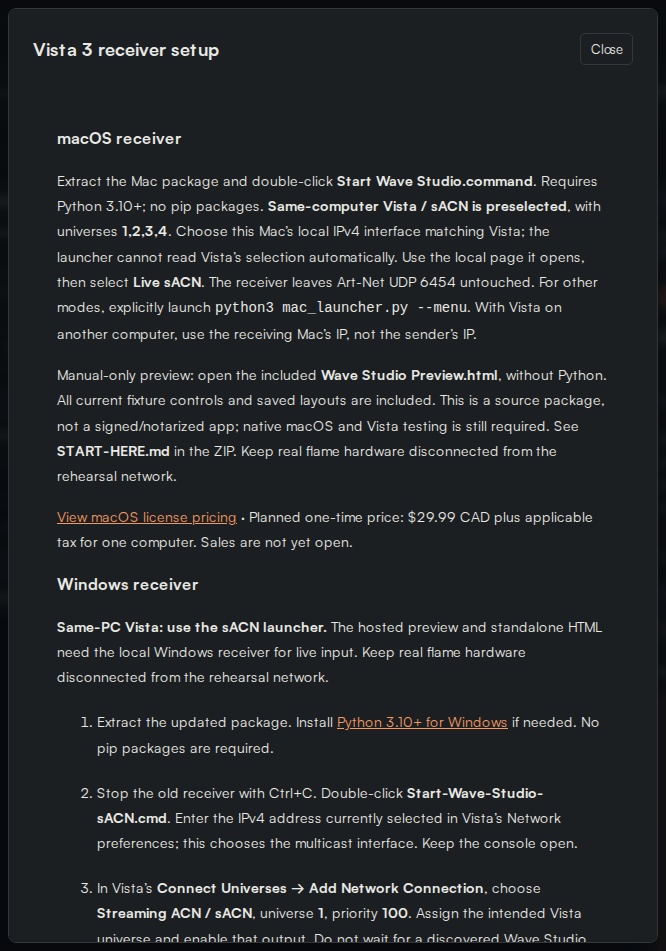
5.1 Live Input mode and the receiver dialog

| # | Callout | What it does |
|---|---|---|
| 1 | Live Input | Third mode: the stage follows incoming sACN. |
| 2 | Receiver status | "Local receiver not found. For same-PC Vista, launch Start-Wave-Studio-sACN.cmd." until the receiver is running. |
| 3 | Vista & MA Receiver | Opens the receiver help dialog; Live Input opens it automatically when no receiver is found. |
| Script (speak) | On screen (do) |
|---|---|
| "Mode three: Live Input 1. Click it with nothing running and the status 2 tells you exactly what is missing — the local receiver — and opens Vista & MA Receiver 3 with the steps. This dialog is the sACN page; everything in this part is in it." | Click Live Input; the dialog opens. |
| "Read the Windows steps with me. One: extract the receiver package. Two: install Python 3.10 or newer. Three: run Start-Wave-Studio-sACN.cmd. Four: when it asks, enter the IPv4 address that Vista is using — the one selected in Vista's Network preferences. The receiver then listens on sACN universes one to four and serves the studio at 127.0.0.1 port 8765." | Scroll the dialog, pointing to each step. |
"On the command line the same thing is py -3 receiver.py --protocol sacn --interface <your IP> --universes 1,2,5. Up to sixteen universe subscriptions, anywhere from one to thirty-two thousand seven hundred sixty-eight. Wave Studio's layout slot zero is sACN universe one." |
Show the command in the dialog. |
| "Firewall: allow UDP 5568 inbound. Art-Net on UDP 6454 is only for a separate PC — on the same machine as Vista, use sACN." | Point to the firewall note. |
Start the receiver
| Script | On screen |
|---|---|
| "Switch to the extracted folder and double-click Start-Wave-Studio-sACN.cmd. Type the IPv4 when prompted. Leave the window open — it is the bridge." | Run the script; show the console output and the local URL. |
| "The Windows app and the Mac launcher ask one more thing first: which console. Vista 3, grandMA3, grandMA2 or another sACN source. The preset only changes the hints and which tab the receiver dialog opens on — the network side is the same standard sACN or Art-Net." | Show the Console drop-down in the Virtual SFX Lab window (or the numbered menu in Terminal on a Mac) and the matching hint line. |
| "Open http://127.0.0.1:8765 — that is the studio served by the receiver — and click Live Input. The status now reports the receiver and the universes it is listening on." | Load the URL, click Live Input, read the status. |
5.2 Vista side: Connect Universes
| Script | On screen |
|---|---|
| "In Vista 3, open Connect Universes and Add Network Connection. Choose Streaming ACN — sACN — universe one, priority one hundred. Make sure Vista's network interface is the same IPv4 you gave the receiver. Vista 3's cue-list CSV import and its sACN output are documented by Chroma-Q; the links are in the notes below." | In Vista: Connect Universes → Add Network Connection → Streaming ACN, universe 1, priority 100. |
| "Patch six channels per X2 at the addresses you will use in Wave Studio. If you want to do it properly, open Vista's Fixture Editor and build the profile from the Fixture Build Sheet — section 5.5 shows where that comes from." | Patch a generic 6-channel fixture at address 1, 7, 13, 19, 25, 31. |
5.3 Wave Studio side: DMX Patch
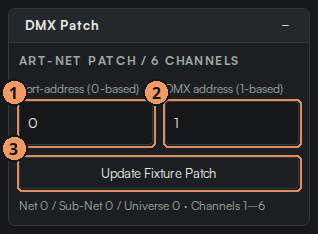
| # | Callout | What it does |
|---|---|---|
| 1 | Port / universe | Receiver slot, 0-based. Slot 0 = sACN universe 1. |
| 2 | DMX start address | 1-based start of the selected unit's six channels. |
| 3 | Apply | Writes the patch to the selected unit(s). |
| Script | On screen |
|---|---|
| "Back in Wave Studio, the DMX Patch panel is where incoming channels meet units. Select a unit, set its port 1 — zero for sACN universe one — and its start address 2, then Apply 3. Six channels per unit, so one, seven, thirteen, and so on. The default stage already ships that way." | Select F01; show port 0, address 1. Select F02; show address 7. |
| "Now move a fader in Vista. Channel one is angle — the simulated head tilts. Channel six above fifty arms it; the Virtual Armed State lights. Push channel three to full and the unit fires, exactly as in Part 4, except the console is doing it. The Virtual DMX Monitor shows Vista's frame arriving, with the source named." | In Vista, move the angle fader; raise arm to 50%; bump ignition. Point to the monitor and status line. |
5.4 Console mapping: Vista faders on Wave Studio's faders
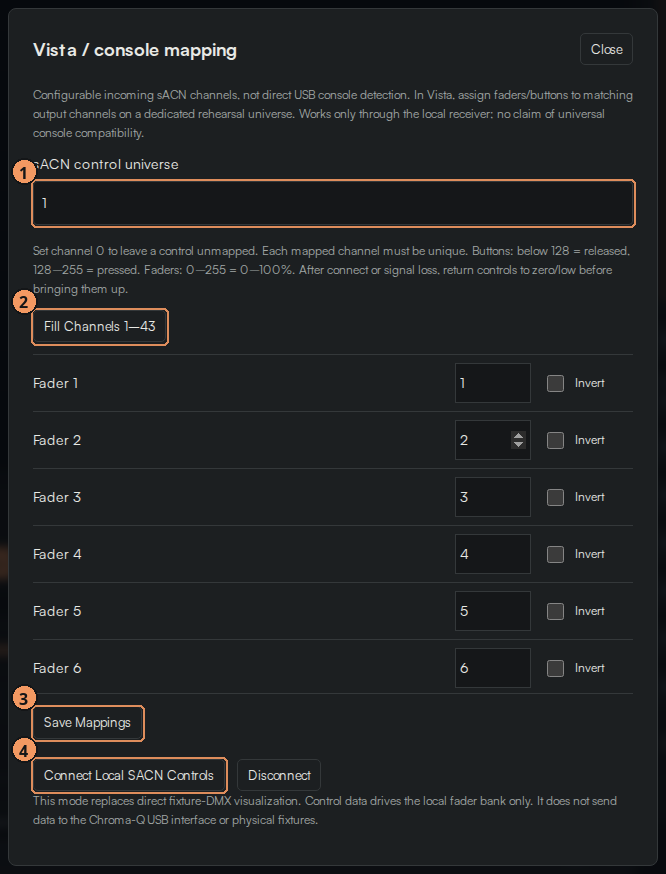
| # | Callout | What it does |
|---|---|---|
| 1 | sACN control universe | The universe Vista uses to send control channels (as opposed to fixture channels). |
| 2 | Fill Channels 1–43 | Auto-assigns Fader 1–20, Bank master, Play flash 1–20 … in sequence. |
| 3 | Save Mappings | Keeps the mapping with the layout. |
| 4 | Connect Local sACN Controls | Start listening for the control universe. Disconnect stops. |
| Script | On screen |
|---|---|
| "Patching fixtures lets Vista drive units directly. Console mapping goes one step further: it puts Vista's faders on top of Wave Studio's virtual faders, flash keys and macros. Open it from Bank & Mapping Controls." | Click Console mapping. |
| "Pick a control universe 1 — say universe two, so it never collides with fixture data. Press Fill Channels 1–43 2 and Wave Studio lays out Fader one to twenty, Bank master, Play flash one to twenty, Sun flash, and Macro F1 to F12; you can edit any channel or tick Invert. The rules are simple: a fader channel from zero to two-fifty-five is zero to one hundred percent; a button channel below one-two-eight is released, one-two-eight and above is pressed." | Set universe 2, click Fill Channels 1–43, scroll the list. |
| "Save Mappings 3, then Connect Local sACN Controls 4. In Vista, add universe two to the sACN connection and move channel one — Wave Studio's Fader 1 follows it on screen. Channel 21 is the Bank master; channel 22 flashes Fader 1's cue." | Save, Connect. In Vista, move U2 channel 1; press channel 22. |
5.5 Export For Vista 3: fixture build sheet and cue lists
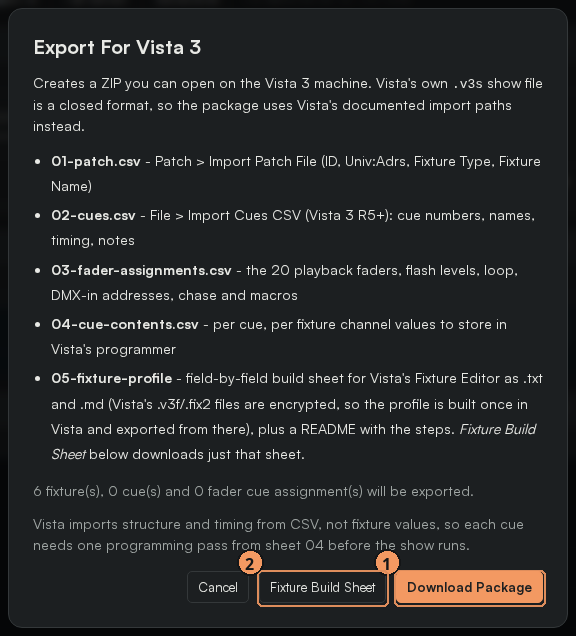
| # | Callout | What it does |
|---|---|---|
| 1 | Download ZIP package | README with the Vista steps, 01-patch.csv (ID, Univ:Adrs, Fixture Type, Fixture Name), 02-cues.csv (the cue library), one 02-cuelist-<nn>-<stack>.csv per cue stack with entries, 03-fader-assignments.csv, and 05-fixture-profile-Explo-X2-Wave-Flame.txt. |
| 2 | Fixture Build Sheet | The X2 profile as a Markdown build sheet for Vista's Fixture Editor. |
| Script | On screen |
|---|---|
"The last piece flows the other way — from Wave Studio to Vista. Fixture & File Controls → Export For Vista 3. The Fixture Build Sheet 2 is the X2 Wave Flame profile written out channel by channel — angle, speed, ignition, open time, program, arm — with the exact ranges, so you can build it in Vista's Fixture Editor in a few minutes. The ZIP package 1 adds a README with the Vista order of operations, a patch CSV for your stage — Patch > Import Patch File — the cue library as 02-cues.csv for File > Import Cues CSV, and a 02-cuelist-<nn>-<name>.csv for every stack you built in Part 3." |
Open the dialog. Click Fixture Build Sheet; open it. Click Download ZIP package; open it. |
| "Vista 3 Release 5 added importing cues from a CSV file, and Vista can import patch lists from CSV, so these files are meant to be imported or read alongside the console. Be clear with your team: this is a build-sheet and CSV workflow, not a native Vista fixture file — Vista's own fixture files are encrypted, and Wave Studio does not write them." | Show the cue-list CSV columns: Cue, Name, Fade In, Fade Out, Delay, Hold, Follow (Halt / Follow / Timecode), Wait, Timecode, Notes. |
| "That closes the loop: audition in the library, build favourites and cues, stack them, rehearse them on the faders, drive them from Vista, and hand Vista the sheet and the cue list. Visual only, all the way." | Return to the studio, Presets mode. |
5.6 grandMA2 and grandMA3: live input and the grandMA export
Wave Studio's receiver speaks standard sACN (ANSI E1.31 "Final", plus the older "Draft" packet format grandMA2 still offers) and Art-Net, so a grandMA3 or grandMA2 console — or onPC software with MA hardware attached — drives the simulated units exactly like Vista does. Nothing changes on the Wave Studio side except which console's output menu you set up; the receiver, the Live Input mode, the DMX Patch and the console mapping from 5.1–5.4 stay the same. The Export For grandMA button in Layout Controls (next to Export For Vista 3) flows the other way and gives the MA a fixture type, a patch with stage positions, and the cue sheets.
grandMA3 / grandMA2  ──sACN (UDP 5568) or Art-Net (UDP 6454)──▶  receiver.py  ──▶  Wave Studio · Live Input
Wave Studio · Export For grandMA  ──▶  GDTF + MVR (grandMA3) · fixture type + layer XML (grandMA2) · CSV sheets
Universe numbering
| Wave Studio | sACN | grandMA3 Art-Net | grandMA2 Art-Net |
|---|---|---|---|
| Patch slot 0 (port 0) | Universe 1 | Art-Net Absolute 0 (Net 0, Sub-Net 0, Universe 0) | Network 1, Subnet 0, Universe 0 |
| Patch slot 1 (port 1) | Universe 2 | Art-Net Absolute 1 | Network 1, Subnet 0, Universe 1 |
The console's own patch universes are "Local Universe" (grandMA3) or "Local Start" (grandMA2). Patch the X2 units in console universe 1 and send that universe out as sACN universe 1 or Art-Net port address 0; the exported package already uses this convention (Wave Studio port 0 = MA universe 1).
Receiver console presets
Every receiver front end has a console choice. It sets the hint text, the status line ("Listening — waiting for grandMA3") and the tab the Vista & MA Receiver dialog opens on; the UDP input itself is the same standard protocol for every console.
| Front end | Where to choose the console |
|---|---|
| Windows app (Virtual SFX Lab window) | Console drop-down above Input mode: Vista 3, grandMA3 console / onPC, grandMA2 console / onPC, Other sACN / Art-Net source. Input mode stays sACN (same-PC console software) or Art-Net (separate PC). The note under the form shows the console's output steps. |
| macOS launcher (Virtual SFX Lab.command) | Numbered menu: 1 preview, 2 sACN from Vista 3, 3 Art-Net from Vista 3, 4 sACN from grandMA3, 5 sACN from grandMA2, 6 Art-Net from grandMA3 / grandMA2, 7 sACN from another console. Return keeps the Vista default. |
| Python package (Windows scripts) | Start-Wave-Studio-grandMA.cmd asks grandMA3 or grandMA2 and the interface IPv4; Start-Wave-Studio-sACN.cmd stays the Vista preset; Start-Wave-Studio.cmd is Art-Net for any console. |
| Command line | receiver.py --protocol sacn --console grandma3 --interface 192.168.1.20 --universes 1,2 (--console vista | grandma3 | grandma2 | other). |
The receiver accepts multicast and unicast sACN, E1.31 Final and Draft packets, and ignores Art-Net ArtSync, so grandMA3's Unicast sACN mode and grandMA2's Draft protocol both work without changing the console. The status counters on the local page show how many Draft packets arrived.
grandMA3 output (console or onPC 2.x)
- Start the receiver on the Wave Studio computer with the grandMA3 console preset (Windows app Console drop-down, Mac menu option 4, or
Start-Wave-Studio-grandMA.cmd), enter the IPv4 address of the network the grandMA3 is on, and select Live Input on the local page. - On the grandMA3 press Menu, tap DMX Protocols, then sACN. Edit the first line: Enabled = Yes, Mode = Output Multicast, Local Universe = 1, Amount = 4 (or the number of universes the layout uses), sACN Universe = 1, Priority = 100. Tap Enable Output at the top until it is On.
- If the console is on its own (not in a session) also switch Send sACN If Idle Master on; in a session only the Global Master transmits. Preview Only may stay on: the receiver accepts preview-flagged data because Wave Studio is a visualizer.
- Art-Net alternative: DMX Protocols → Art-Net, Enabled = Yes, Mode = Unicast with the receiver's IP as Destination IP (or Broadcast on a dedicated rehearsal network), Local Universe = 1, Amount as needed, Art-Net Absolute = 0, then Enable Output and Send Art-Net If IdleMaster on. Use the Art-Net launcher
Start-Wave-Studio.cmdinstead of the sACN one. - Watch the receiver status on the local page: the datagram counter climbs as soon as the console outputs. If it stays at zero on onPC, remember MA's rule: grandMA3 onPC outputs no parameters without grandMA3 hardware (onPC command wing, fader wing, xPort node or processing unit), and onPC systems are limited to 4,096 parameters. Each X2 unit takes six.
grandMA2 output (console or onPC 3.x)
- Start the receiver with the grandMA2 console preset (Windows app Console drop-down, Mac menu option 5, or
Start-Wave-Studio-grandMA.cmd→ 2) and select Live Input as above. - On the grandMA2 open Setup → Network → Network Protocols and the sACN tab. Add a line: Local Start = 1, Amount = 4, sACN Universe = 1, Priority = 100, Protocol = Final, Mode = Output Multicast. Switch sACN Output Active on; on a single station switch Network DMX if Alone on as well.
- Protocol = Final is preferred, but Draft works too: the receiver reads both packet layouts and counts Draft packets separately in its status line, so an old show file set to Draft needs no change.
- Art-Net alternative: Art-Net tab, Local Start = 1, Amount as needed, Mode = Output Unicast with the receiver IP (or Output Broadcast), Network = 1, Subnet = 0, Universe = 0, then Art-Net Output Active on. grandMA2 onPC picks its Art-Net interface IP automatically. Use
Start-Wave-Studio.cmd. - grandMA2 onPC likewise needs MA onPC hardware (command wing, fader wing or 2Port Node onPC) to unlock output parameters, up to 4,096 in total.
Export For grandMA: what is in the package
MA show files (.show, .show.gz) are not a documented interchange format, so Wave Studio writes the formats MA Lighting documents for import. The dialog asks for the width, depth and height in metres that the units cover (outermost units define the extent, centred on the stage origin) and remembers them on this device.
| File | For | Import |
|---|---|---|
grandMA3/Explo@X2_Wave_Flame@WaveStudio_6ch.gdtf | grandMA3 (and grandMA2 3.9+) | GDTF fixture type (DIN SPEC 15800, validated against the official schema): Tilt, Speed, Ignition (Idle / Fire), Open Time, Program with a named channel set for every sequence 001–088, Arm (Safe / Armed / Safe). Ignition and Arm are snap channels. Copy to grandMA3/gma3_library/fixturetypes on a USB stick, then Menu → Patch → Fixture Types → Import. |
grandMA3/WaveStudio-<layout>.mvr | grandMA3 | MVR scene (DIN SPEC 15801) with every unit, its absolute address, stage position and mount rotation, and the GDTF inside. Copy to grandMA3/gma3_library/mvr, then Menu → Show Creator → Partial Show Read → MVR, keep Fixtures checked, Select, review the MVR Patch against the running patch (Use MVR Only for a fresh show, Merge MVR to add), Finish, OK. PSR clears the programmer. |
grandMA2/Explo_X2_Wave_Flame@6ch.xml | grandMA2 3.4+ | Fixture type in grandMA2's XML schema (TILT, PTSPEED, MACROS "Ignition", DUMMY "Open Time", EFFECTMACROS "Program" with a channel set per sequence, MODE "Arm"). Copy to gma2/library (onPC: the library folder under MA Lighting Technologies\grandma\gma2_V_x.x), then Setup → Patch & Fixture Schedule → Fixture Types → Import. |
grandMA2/wavestudio_layer.xml | grandMA2 3.4+ | A fixture layer with every unit, fixture ID, absolute address ((universe−1)·512 + address) and position. Copy to gma2/importexport, then in the command line CD EditSetup, Import "wavestudio_layer" At Layer 1, CD Root. The layer references fixture type number 2 ("2 Explo X2 Wave Flame 6ch", the first user type in a new show); edit <No> and the name in the XML if your show numbered it differently. |
01-patch.csv | Both | FixtureID, name, type, mode, universe, address, Universe.Address, absolute address, positions in metres, mount rotation, inverted flag, angle limits and home angle (degrees and DMX). The headers also suit the ma.tools PatchImporter plugin on grandMA3. |
02-cues.csv, 03-cuelist-<nn>-<stack>.csv | Both | Cue numbers, names, fade / delay / hold timing and contents summary; one cuelist sheet per Wave Studio cue stack. |
04-cue-contents.csv | Both | Per cue, step and unit: every channel as DMX value and percentage (Tilt, Speed, Ignition pulse, Open Time, Program value and valid range, Arm) plus sequence duration and gap — the programming sheet for storing cues on the console. |
05-fader-assignments.csv, README-grandMA.txt | Both | The 20 virtual fader assignments and the step-by-step import notes. |
Fixture types, patch and positions import directly; cue contents need one programming pass per cue from sheet 04 because MA consoles do not import cue values from CSV. Program from the sheet (select units, pick the Program channel set, Arm = Armed, then Ignition = Fire for one Go), store, and use the Wave Studio receiver to check the result live. The GDTF Only button saves just the fixture type when the patch already exists on the console.
| Script | On screen |
|---|---|
| "If your desk is a grandMA instead of a Vista, nothing changes on this side: the receiver is plain sACN and Art-Net. On a grandMA3 it is Menu, DMX Protocols, sACN — enable the line for local universe one, amount four, sACN universe one, Enable Output, and if the console is alone, Send sACN If Idle Master. On a grandMA2 it is Setup, Network Protocols, sACN, Final protocol, Output Active, Network DMX if Alone." | Show the receiver status page; then the grandMA3 sACN menu or a slide of it. |
| "The MA panel is the console's command section inside Wave Studio: Fixture 1 Thru 4 At 30 Please parks four heads at thirty degrees, Store Cue records them, Go+ runs the stack, X keys start faders. Patch eighty-four dimmer channels on a real grandMA at the addresses in the key sheet and the desk presses those keys for you." | MA panel: keys lighting as a command is built, the feedback line, then the Physical grandMA console drawer. |
| "And the other direction is Export For grandMA: a real GDTF fixture type and an MVR with the patch and stage positions for grandMA3, the fixture-type and layer XML for grandMA2, and the same cue sheets you saw for Vista. Import the MVR through Partial Show Read, program the cues from sheet 04, and rehearse them here before anything is connected to gas." | Open Export For grandMA, show the stage size fields, download, open the ZIP. |
5.7 The MA panel: a grandMA command section inside Wave Studio
The MA panel sits directly under Layout Controls (since 0.34; phones show it as a detachable MA Console card on the Stage tab with Float MA, a minimize button and long-press drag to dock it above or below Layout Controls or the Layout view; Add Panels → MA in a custom workspace). It is the command section of a grandMA2 or grandMA3 — Go+, Go−, Pause, Store, Fixture, Thru, At, Please, the number pad, the executor X keys — and every key does the closest thing Wave Studio can do. Press keys on screen, type the same words on the command line, or press them from a real grandMA console through the control universe. The Key set menu shows the grandMA3 keys, the grandMA2 keys (Channel, Label, Tools, <<< / >>>) or all of them.
Command line grammar
Commands read like MA: function, object list, value, Please. Numbers run together on the key pad (1, 2 = 12); Thru builds a range (Thru alone runs to the last unit); + and − add or remove numbers. Exec 2.3 is page 2, executor 3 (fader 13). Typing works too: fixture 1 thru 4 at 30 then Enter, or the shorter f 1-4 at 30.
| Command | What Wave Studio does |
|---|---|
Fixture 1 Thru 4 Please (or just 1 Thru 4 Please) | Selects units F01–F04. Channel is the grandMA2 name for the same key. |
Fixture 2 + 5 At 30 Please | Sets the home angle of F02 and F05 to 30° and parks them there (Home). With Align lit, Fixture 1 Thru 6 At 30 fans the heads from −30° to +30°. |
Store Group 3 Please · Group 3 Please · Label Group 3 Please + name | Stores the current selection as group 3, recalls it, names it. Groups 1–99 are kept in this browser. |
Preset 12 Please | Applies library program 012 to the selected units (all units if nothing is selected). Programs are the fixed X2 library, so Store Preset is refused. |
Store Cue Please · Store Cue 3 Please · Update Cue 3 Please | Records the selected units as a new cue (and puts it on the first free fader), overwrites cue 3, or updates it. Cue numbers are positions in the cue library. |
Cue 3 Please · Goto Cue 3 · Go+ Cue 3 | Plays recorded cue 3 on its fader (releasing other cue faders), exactly like Cue Recorder navigation. |
Assign Cue 3 Exec 5 Please · Del Exec 5 Please | Puts cue 3 on fader 5; clears fader 5. Copy Exec 1 At 11 and Move Exec 1 At 11 duplicate or move assignments; Copy Cue 2 At 4 / Move Cue 2 At 4 reorder the library. |
Exec 5 Please · Exec 5 At 60 Please · Exec 5 Full · Exec 5 Off | Selects executor 5; sets its level to 60 %; 100 %; releases it. Off Exec 1 Thru Please releases the whole page. |
Go+ alone | GO on the Cue Stack when any stack has entries, otherwise starts the selected executor. Go− steps the stack back, Top points Next at entry 1, Off Please releases the running stack (or the selected executor), Goto 4 jumps to stack entry 4. |
Pause · Freeze | Pause stops and restarts the bank clock (cues, chases and the stack). Freeze stops the stage animation itself (the Play / Pause button). |
X1 … X10 · Page+ / Page− · Temp · Toggle · Up / Down | X keys are Go+ on faders 1–10 (page 1) or 11–20 (page 2). Temp flashes the selected executor while held, Toggle switches it, Up / Down nudge it by 10 %. With Solo lit, starting an executor releases the others. |
Sequ 2 Please · Go+ Sequ 2 | Chooses cue stack 2 in the Cue Stack panel, or chooses it and presses GO. |
Macro 4 Please | Presses Macro F4 from the Macros panel. |
Time · Edit Cue 3 · Edit Fixture 2 | Opens the cue timing dialog for the selected executor or cue 3; selects F02 and scrolls to the fixture editor. |
Label Cue 3 Please + name + Enter | Renames cue 3 (also Label Group n, Label Fixture n, Label Exec n). grandMA2 key; on the grandMA3 set type label cue 3. |
Clear · Esc · Oops · MA + Clear | Clear empties the command line, then the selection. Esc also closes an open dialog. Oops is Undo. MA + Clear (or MA + Off) releases every playback. |
Blind · Prvw · Highlt | Blind switches the playback source to Presets so faders and the stack stop driving the stage; Prvw toggles the angle guides; Highlt flashes every playable executor while lit. |
Prev / Next · List | Step the selection one unit back or forward; scroll to the Unit List. |
Backup · Setup / Menu · Help · Tools | Save Layout; Settings; this First Guide; AI Assist. |
Learn · If · Set · View n · Effect | Reported as not modelled: tap tempo, filters, Set, views (use Layouts) and effects have no Wave Studio equivalent. |
Lit keys (Blind, Freeze, Prvw, Highlt, Solo, Align, MA) show an underline; held keys turn orange; a key pressed from a physical console flashes the same way as a mapped flash button. The feedback line under the command line says what happened or why a command was refused. In Live Input mode the programmer keys still work but playback keys answer “Live Input owns playback”.
Pressing the keys from a real grandMA console
Wave Studio never talks to a console directly; the MA panel listens on the same control universe as the Vista fader mapping (5.4). Each key is a button target: a channel at 128 or more presses it, under 128 releases it.
- Open the Physical grandMA console drawer at the bottom of the MA panel, choose a first channel (default 101, so fader and flash channels 1–43 stay free) and click Patch Keys In Order. The 84 keys take consecutive channels in the order of
06-ma-keys.csvfrom Export For grandMA; Bank & Mapping Controls → Console mapping shows and edits them under the heading grandMA keys. - On the console, patch one generic Dimmer fixture per key in the control universe at those addresses (grandMA3: Patch → Add fixtures, type Dimmer, quantity 84, starting at universe 1 address 101; grandMA2: Setup → Patch & Fixture Schedule → Add Fixtures, Generic Dimmer 00). Name them after the keys in the CSV.
- Give each dimmer an executor button or a macro: store the dimmer at Full in a cue and set the executor button to Temp (grandMA3: Assign Menu → Button → Temp; grandMA2: Assign → Temp) so the key is pressed while the button is held. A macro such as
Fixture 101 At 100; Fixture 101 At 0presses and releases it once. - Start the receiver in sACN mode (
Start-Wave-Studio-sACN.cmdorVirtual SFX Lab.command), send the control universe from the console as in 5.6, open the console mapping dialog and press Connect. Lower every mapped channel once; the MA panel then follows the console keys.
Executor faders on the console still map to Wave Studio faders through the fader channels (5.4), so a grandMA desk can run faders, flash keys, macros and the full command section at once. Nothing is sent back to the console.
Troubleshooting
| Symptom | Check |
|---|---|
| "Local receiver not found" | Is Start-Wave-Studio-sACN.cmd running? Are you on http://127.0.0.1:8765 rather than the static file? |
| Receiver runs, nothing moves | Vista interface IPv4 must equal the one you typed into the receiver. Universe 1 in Vista = slot 0 in DMX Patch. UDP 5568 allowed inbound. |
| Wrong unit moves | DMX Patch address mismatch; six channels per unit. |
| Unit tilts but never fires | CH6 Arm must be 50–200; CH3 must rise into 254–255 from below 254; the DMX Monitor prints the reason. |
| Vista fader does not move a virtual fader | Console mapping universe must be added to the Vista sACN connection; press Connect Local sACN Controls; Fader playback ticked. |
| Same PC, Art-Net chosen | Use sACN on one machine; Art-Net (UDP 6454) only from a separate PC. |
| grandMA3 or grandMA2 onPC sends nothing; receiver datagrams stay at 0 | MA onPC software outputs no parameters without MA hardware attached (grandMA3: onPC wing, xPort node or processing unit; grandMA2: onPC command wing, fader wing or 2Port Node onPC). Check Enable Output / Output Active, "Send … If Idle Master" (MA3) or "Network DMX if Alone" (MA2), and that the console's network interface is the one whose IPv4 you typed into the receiver. |
| grandMA2 sACN shows as rejected packets | Set Protocol to Final; the receiver does not parse the 2006 Draft layout. |
| Art-Net from grandMA reaches the wrong slot | Art-Net port address is 15-bit: grandMA3 "Art-Net Absolute 0" and grandMA2 "Network 1 / Subnet 0 / Universe 0" are Wave Studio slot 0. sACN universe 1 is slot 0. |
| MVR import shows fixtures but no fixture type | Import the GDTF from the ZIP through Patch → Fixture Types → Import, or re-run Partial Show Read with Fixtures checked; the GDTF travels inside the .mvr. |
| grandMA2 layer import fails | Import the fixture type first, check its number in Fixture Types, and edit <No> and the name in wavestudio_layer.xml; XML must come from the same or an older grandMA2 version (the file declares 3.4). |
| MA panel: a key from the console does nothing | The console mapping must be connected (5.4) with the receiver in sACN mode, and the key's channel must reach 128 or more. Check the channel in Console mapping under grandMA keys; after connecting, lower every mapped channel once so the mapper arms. |
| MA panel: "Command error: … needs an object first" or "One function per command" | MA grammar is function, objects, value, Please. Press Clear and build the line again; the feedback line under the command line shows the parsed words. |
| MA panel: Go+ runs the stack instead of my fader | Go+ alone prefers a Cue Stack that has entries. Use Exec 5 Go+ (or X5) for a fader, or clear the stack entries. |
| grandMA2 set to sACN "Draft" shows nothing | Receiver 0.33 reads Draft; older receivers (0.31 and earlier) rejected it. Update the desktop package or set Protocol = Final on the console. |
| The receiver says "waiting for Vista" although I use a grandMA | Choose the console preset (Windows app Console drop-down, Mac menu 4–6, --console grandma3). It only changes hints and status text; packets are accepted either way. |
Notes and sources
- Vista 3 Release 5 introduced importing cues from a CSV file, per the Chroma-Q Vista 3 Release 5 notes and the Vista forum thread on importing a CSV cuelist.
- Patch lists can be imported from CSV; see the Vista manual (AC Lighting edition).
- Fixture profiles are imported through File > Import; see Chroma-Q technical bulletin CQTB004 — Importing Fixture Profiles in Vista 3.
- Vista fixture definition files (.v3f / .fix2) are encrypted, which is why Wave Studio ships a build sheet instead; see the Vista forum thread on fixture definitions.
- Channel ranges come from the Explo X2 Wave Flame Fixture Build Sheet generated by Wave Studio's Export For Vista 3.
- grandMA3 sACN and Art-Net output menus: grandMA3 help — sACN, grandMA3 help — Art-Net, Transmit DMX using Art-Net; onPC parameter rule in Network and how to output DMX.
- grandMA3 MVR and GDTF import: Partial Show Read, Import GDTF fixture types, Patch import/export.
- grandMA2 network protocols and import: grandMA2 help — Network DMX protocols, Add fixtures / import fixture types, layer import commands, release notes (XML version rule).
- File formats: GDTF specification, MVR specification, ma.tools PatchImporter. The grandMA2 XML follows the structure of fixture types exported by grandMA2 3.4; verify in onPC before relying on it.
Recap
- Live Input + local receiver (Python,
Start-Wave-Studio-sACN.cmd, http://127.0.0.1:8765), receive-only. - Vista: Connect Universes → Streaming ACN, universe 1, priority 100, same IPv4; UDP 5568.
- DMX Patch: slot 0 = universe 1; six channels per unit; Apply.
- Console mapping: control universe, Fill Channels 1–43, Save, Connect; buttons ≥128 pressed, faders 0–255.
- Export For Vista 3: Fixture Build Sheet + ZIP with patch CSV and a cue-list CSV per stack.
- grandMA3 / grandMA2: same receiver over sACN (Final or Draft, multicast or unicast) or Art-Net; choose the console preset in the Windows app, Mac menu or
--console; onPC needs MA hardware to output. Export For grandMA: GDTF + MVR, grandMA2 fixture type + layer XML, patch and cue CSV sheets, 06-ma-keys.csv. - MA panel: grandMA command section (Fixture 1 Thru 4 At 30 Please, Store Cue, Go+, X keys); keys map to control-universe channels so a real grandMA2 / grandMA3 presses them over sACN.