← Part 2 · Part 3 · Part 4 → · Index
Part 3 — Presets, Favourites, Cues and Cue Stacks
Goal: the viewer can audition the 88 internal sequences, star favourites while the list scrolls, order and time them in the Favourites tab, save that order as a cue, record cues from the stage, and assemble cues into a cue stack with Go and Follow triggers — then export the stack for Vista.
Runtime: 9–10 minutes.
You need: the studio in Presets mode, default layout, six units on stage. Open the Cue Recorder and Cue Stack bars in the main column before you start recording.
Images: images/p3-library.png, images/p3-transport.png, images/p3-favourites.png, images/p3-recorder.png, images/p3-timing.png, images/p3-stack.png.
The flow of this part is a pipeline, and it helps to say so on camera:
Sequence Library  →  ★ Favourites (order + duration + gap)  →  Save Order As Cue
                                                                      ↓
Stage selection + sequence  →  Cue Recorder (Record Selected)  →  recorded cues
                                                                      ↓
                                               Cue Stack (Go / Follow / Timecode)  →  Export CSV For Vista
3.1 The Sequence Library
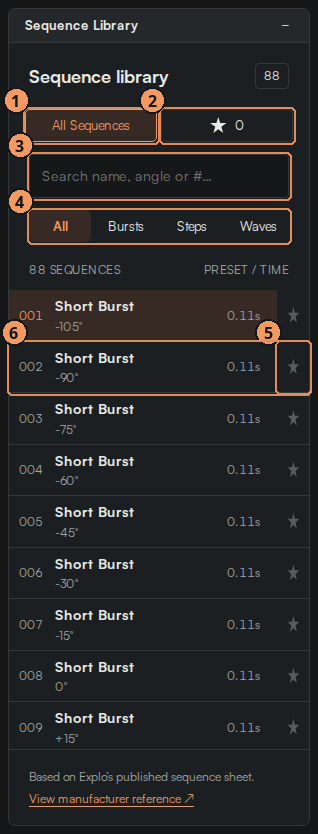
| # | Callout | What it does |
|---|---|---|
| 1 | All Sequences | The full catalog — 88 sequences, numbered 001–088. |
| 2 | Favourites tab | Shows the starred sequences, with the count. |
| 3 | Search | Filter by name, angle, or number. |
| 4 | Type filters | All / Bursts / Steps / Waves. |
| 5 | Star | Adds the row to Favourites without stopping playback. |
| 6 | Sequence row | Click to apply to the selected units (or all units if none selected). Shows number, name, angle and time. |

| # | Callout | What it does |
|---|---|---|
| 1 | Play / Pause | Space. |
| 2 | Restart | Back to 0.00 s. |
| 3 | Loop | Repeat. |
| 4 | Auto-next | Advance when a sequence ends. In the Favourites tab, Auto-next follows the favourites order. |
| 5 | Jump to start (hold to scroll) | Double arrow; hold to scroll the catalog 50% faster. |
| 6 | Previous | Single arrow; ←. Hold to scroll. |
| 7 | Next | Single arrow; →. Hold to scroll. |
| 8 | Jump to end | Double arrow. |
| Script (speak) | On screen (do) |
|---|---|
| "The Sequence Library is the X2's own program list, all eighty-eight sequences 1, each with its number, name, angle and running time 6. Click a row and the selected units play it; with nothing selected, the whole stage plays it. The Sequence Information panel on the right shows the number, name, type, duration and the head path for whatever is playing." | Click 008 Short burst, then 051 Wave. Point to Sequence Information. |
| "Filter by type 4 — Bursts, Steps, Waves — or search 3 by name, angle or number. Type 'fan' or '45' and watch the list shrink." | Click Waves, then All. Type fan in search, clear it. |
| "You do not have to click rows one by one. The transport arrows step the list for you: single arrows [6][7] go one sequence, double arrows [5][8] jump, and if you hold either one, the list scrolls — double arrows fifty percent faster. Tick Auto-next 4, press play, and the catalog auditions itself." | Hold ▶ for two seconds. Tick Auto-next, let three sequences play. |
3.2 Starring favourites as the list scrolls
| Script | On screen |
|---|---|
| "Here is the habit to build: when you hear or see a look you like while the list is scrolling, hit the star 5 on that row. Starring never interrupts playback. The count on the Favourites tab 2 ticks up as you go. Do a full pass of the catalog this way and you have your palette for the show in a couple of minutes." | With Auto-next running, star 008, 012, 020, 051 and 063 as they pass (or hold the arrows and star as rows go by). Untick Auto-next. |
3.3 Ordering and timing favourites, then saving the order as a cue
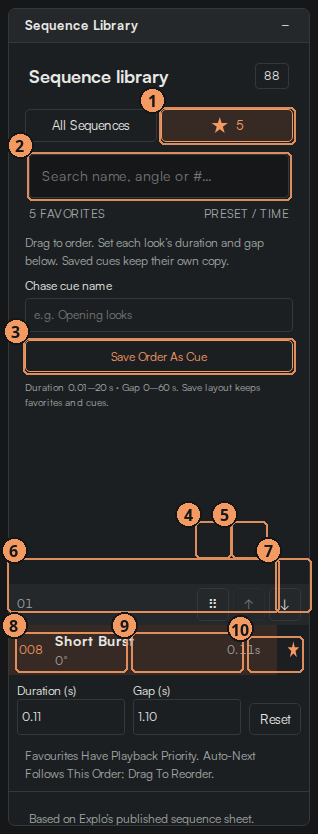
| # | Callout | What it does |
|---|---|---|
| 1 | Favourites tab | Shows your starred looks and their count. |
| 2 | Chase cue name | Name for the cue you are about to save, e.g. "Opening looks". |
| 3 | Save Order As Cue | Creates a recorded cue called by that name (default "Favorites chase") that plays the favourites in this order with these durations and gaps. The saved cue keeps its own copy of the order. |
| 4 | Drag handle ⠿ | Drag a favourite up or down to reorder. |
| 5 | Move up / down | Keyboard-friendly reorder. |
| 6 | Favourite look | Click to play it on the selected units. |
| 7 | ★ Unstar | Remove from favourites. |
| 8 | Duration (s) | How long this look holds in the chase: 0.01–20 s. |
| 9 | Gap (s) | Silence after it before the next look: 0–60 s. |
| 10 | Reset timing | Back to the sequence's natural duration and no gap. |
| Script | On screen |
|---|---|
| "Switch to the Favourites tab 1. This is a playlist, not just a shortlist. Drag the handle 4 or use the arrows 5 to set the running order. The note at the top says it plainly: favourites have playback priority, and Auto-next follows this order — so with Auto-next on, play now steps through your list, not the catalog." | Click the ★ tab. Drag 051 to the top. Tick Auto-next, press Play, watch it follow the order, untick. |
| "Each favourite has its own Duration 8 and Gap 9. Duration is how long the look holds, from a hundredth of a second up to twenty seconds; gap is the pause after it, up to a minute. Reset 10 returns to the sequence's natural length." | Set 051 to 2.5 s with a 1.0 s gap; set 008 to 0.3 s with 0.2 s gap. |
| "Now the step that turns a playlist into a building block. Give it a name 2 — 'Opening looks' — and press Save Order As Cue 3. Wave Studio creates a recorded cue that plays these looks, in this order, with these timings, and the cue keeps its own copy — you can keep editing favourites without changing what you saved." | Type Opening looks, click Save Order As Cue. Point to the cue appearing in Cue Recorder. |
3.4 Recording cues from the stage
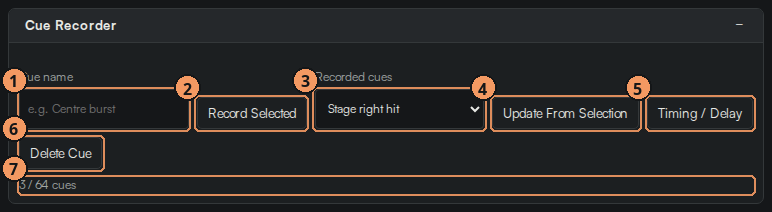
| # | Callout | What it does |
|---|---|---|
| 1 | Cue name | Name before you record. |
| 2 | Record Selected | Snapshot the selected units and the sequence each is showing. |
| 3 | Recorded cues | The cue library (up to 64 cues). |
| 4 | Update From Selection | Overwrite the chosen cue with the current selection. |
| 5 | Timing / Delay | Opens Playback settings for that cue (next image). |
| 6 | Delete Cue | Remove the chosen cue. |
| 7 | Cue count | How many of 64 are used. |
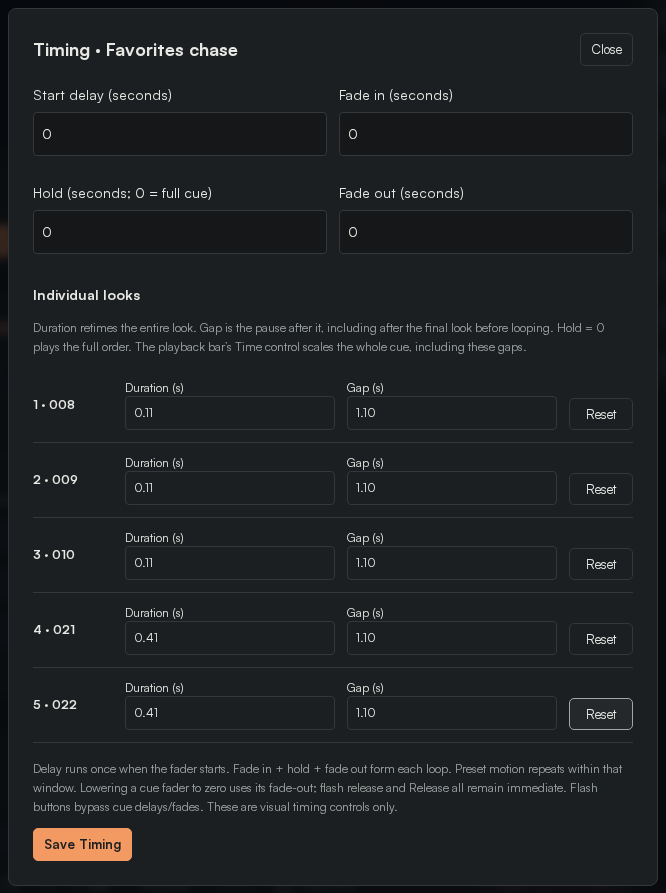
Fields in Playback settings: Start delay (s), Fade in (s), Hold (s; 0 = full cue), Fade out (s), Target fader (which virtual fader the cue should sit on — Part 4).
| Script | On screen |
|---|---|
| "The second way to make a cue is to build a picture on stage and record it. Select some units, give each the look you want, name it 1, press Record Selected 2. A cue remembers which units and which sequence on each — so one cue can have a wave on the outside pairs and a burst in the centre." | Select F01 and F06, click 051 Wave; select F03 and F04, click 008 Short burst. Select F01, F03, F04, F06. Name Centre burst, click Record Selected. |
| "Record a second one so we have something to stack." | Select F05 and F06, click 020. Name Stage right hit, Record Selected. |
| "Change your mind? Pick the cue 3, adjust the stage, Update From Selection 4. Timing / Delay 5 opens the Playback settings: start delay, fade in, hold — zero means the full cue — fade out, and the target fader, which we meet in Part 4." | Click Timing / Delay for Centre burst, set Fade in 0.2, Fade out 0.5, Close. |
3.5 Building a cue stack
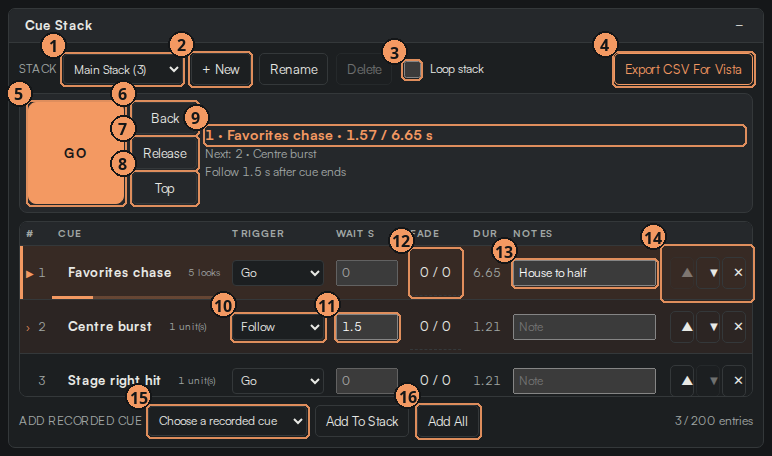
| # | Callout | What it does |
|---|---|---|
| 1 | Stack selector | Which stack you are editing (up to 16 stacks). |
| 2 | + New | Create a stack. Beside it: Rename, Delete. |
| 3 | Loop stack | After the last entry, go back to the top. |
| 4 | Export CSV For Vista | Downloads this stack as a cue-list CSV (Part 5). |
| 5 | GO | Fire the next entry. Space when the panel has focus. |
| 6 | Back | Step back one entry. |
| 7 | Release | Stop the running entry and release the units. |
| 8 | Top | Return the pointer to entry 1 without playing. |
| 9 | Running entry / time | What is playing, elapsed / total, what is next, and any pending Follow. |
| 10 | Trigger | Go (waits for you), Follow (fires automatically after the previous entry ends plus the Wait), or Timecode (fires at a frame time from the Timecode panel). |
| 11 | Wait | Seconds after the previous cue ends before a Follow fires. |
| 12 | Fade | Fade in / out for this entry; click to open Timing. |
| 13 | Notes | Free text that travels into the CSV. |
| 14 | Reorder / remove | ▲ ▼ ✕. |
| 15 | Add recorded cue | Pick a cue from the library. Add To Stack appends it. |
| 16 | Add All | Append every recorded cue in library order. |
| Script | On screen |
|---|---|
| "Now we sequence the show. Open Cue Stack. A stack is a numbered list of your recorded cues with a trigger on each. New 2 makes one — call it 'Main Stack'. Add recorded cue 15 then Add To Stack, or Add All 16 to pull in the whole library. Up to sixteen stacks, two hundred entries each." | Open Cue Stack. Click + New, name Main Stack. Click Add All. |
| "Every entry has a Trigger 10. Go means it waits for your GO. Follow means it fires by itself after the previous entry finishes, plus the Wait 11 in seconds. Timecode fires at a frame time from the Timecode panel. Set entry two to Follow with a one-and-a-half second wait." | On row 2, set Trigger Follow, Wait 1.5. |
| "Now run it. Press GO 5. The readout 9 shows the running entry, the clock, what is next, and — when the next entry is a Follow — a countdown note. Watch: entry one ends, one and a half seconds, entry two fires itself. Entry three is a Go, so it waits for you." | Click GO. Wait for the Follow. Click GO again for entry 3. |
| "Back 6 steps back. Release 7 stops the running cue and releases the units. Top 8 resets the pointer to entry one. Clicking a cue name makes it the next entry; double-clicking plays it immediately. Loop stack 3 makes a holding loop for pre-show." | Click Release, Top. Double-click Stage right hit. Tick Loop stack, GO twice, untick, Release. |
| "Use Notes 13 — 'house to half', 'wait for vocal' — because they travel into the export. And speaking of export, Export CSV For Vista 4 downloads the stack as a cue-list CSV. Part 5 shows what Vista does with it." | Type House to half in row 1 Notes. Click Export CSV For Vista. |
| "When the panel is minimized, its bar still shows the running entry, the next entry and a live GO button, so you can run a stack with the panel out of the way." | Click the Cue Stack −; point at the bar and its GO. Restore it. |
Recap
- Library → star while scrolling → Favourites tab = ordered, timed playlist → Save Order As Cue.
- Cue Recorder snapshots the selected units and their sequences; up to 64 cues; Timing / Delay sets delay, fades and target fader.
- Cue Stack: Go / Follow (+ Wait) / Timecode triggers, GO · Back · Release · Top, Loop, Notes, Export CSV For Vista.
- Everything is saved with Save Layout and in autosave.
Two-minute practice
- Star six sequences during one scrolling pass. Order them fast-to-slow, give the first three a 0.3 s duration, and save the order as "Opener".
- Record two stage cues with different unit groups.
- Build a stack: Opener (Go), cue 2 (Follow 1.0 s), cue 3 (Follow 0.5 s). Run it from GO, add a note to each row, and export the CSV.