← Part 1 · Part 2 · Part 3 → · Index
Part 2 — Layout of the Full Studio
Goal: the viewer can name the four horizontal bands of the studio, knows what lives in each of the three workspace columns, can open, minimize, move, float, rename and copy a panel, and can save and restore a layout.
Runtime: 7–8 minutes.
You need: the studio open at the shipped default layout (Fixture & File Controls → Default Layout if you have customized). Dark theme.
Images: images/p2-header.png, images/p2-overview.png, images/p2-tools.png, images/p2-stage.png, images/p2-panel-anatomy.png, images/p2-add-panels.png.
2.1 The three bars across the top

| # | Callout | What it is |
|---|---|---|
| 1 | Wave Studio / version | Brand and the current beta number. Next to it: Contribute, the Perplexity credits counter, and the VISUAL ONLY badge. |
| 2 | Presets | Mode 1: play the X2's internal sequences from the library. |
| 3 | Virtual Faders | Mode 2: drive channels from on-screen faders (Part 4). |
| 4 | Live Input | Mode 3: take sACN from Vista through the local receiver (Part 5). |
| 5 | Source status | Tells you which source is driving the stage, e.g. "Preset playback · no live input". |
| 6 | Vista & MA Receiver | Opens the receiver and Vista help dialog. |
| 7 | Settings | App settings. Beside it: Multi-Screen, Refresh, AI Assist, Test Checklist. |
| 8 | Customize Workspace | Enters panel-editing mode (also: hold Ctrl + Shift). |
| 9 | Layouts | Saved panel arrangements. |
| 10 | Add Panels | Panel catalog (Ctrl + Shift + P). |
| 11 | Collapse All | Minimizes every panel. |
| 12 | Full Screen | Hides browser chrome (Ctrl + Shift + F). |
| 13 | Screenshot | Saves the stage as PNG (Ctrl + Shift + S). |
| 14 | Reference & Notes | Explo data sources and in-app notes. |
| 15 | Shortcuts | The keyboard shortcut list (also ?). |
| 16 | Light / Dark | Theme toggle. |
| 17 | Chat | Session chat (WebRTC). |
| 18 | Camera | Camera / call view (WebRTC). |
| Script (speak) | On screen (do) |
|---|---|
| "Welcome to the full studio. It looks busy; it is actually four horizontal bands and three columns, and once you see that you can find anything." | Studio open, scrolled to the top. |
| "Band one is the header 1: the beta number, ← Back to Demo for the landing page, the VISUAL ONLY badge — which is a promise, not a disclaimer — Reference & Notes 14 for the Explo sources, Shortcuts 15, and the theme toggle 16." | Hover each in turn. Click Shortcuts, scroll it, close. |
| "Band two is the mode bar. Three modes decide what drives the stage: Presets 2, Virtual Faders 3, and Live Input 4. The status text 5 always tells you which source is in charge and whether any hardware is involved — the answer is always none." | Click each mode; read the status each time. Return to Presets. |
| "Band three is the workspace bar: Customize Workspace 8, Layouts 9, Add Panels 10, Collapse All 11, Full Screen 12 and Screenshot 13. We come back to these in a minute." | Hover each. |
2.2 The three columns
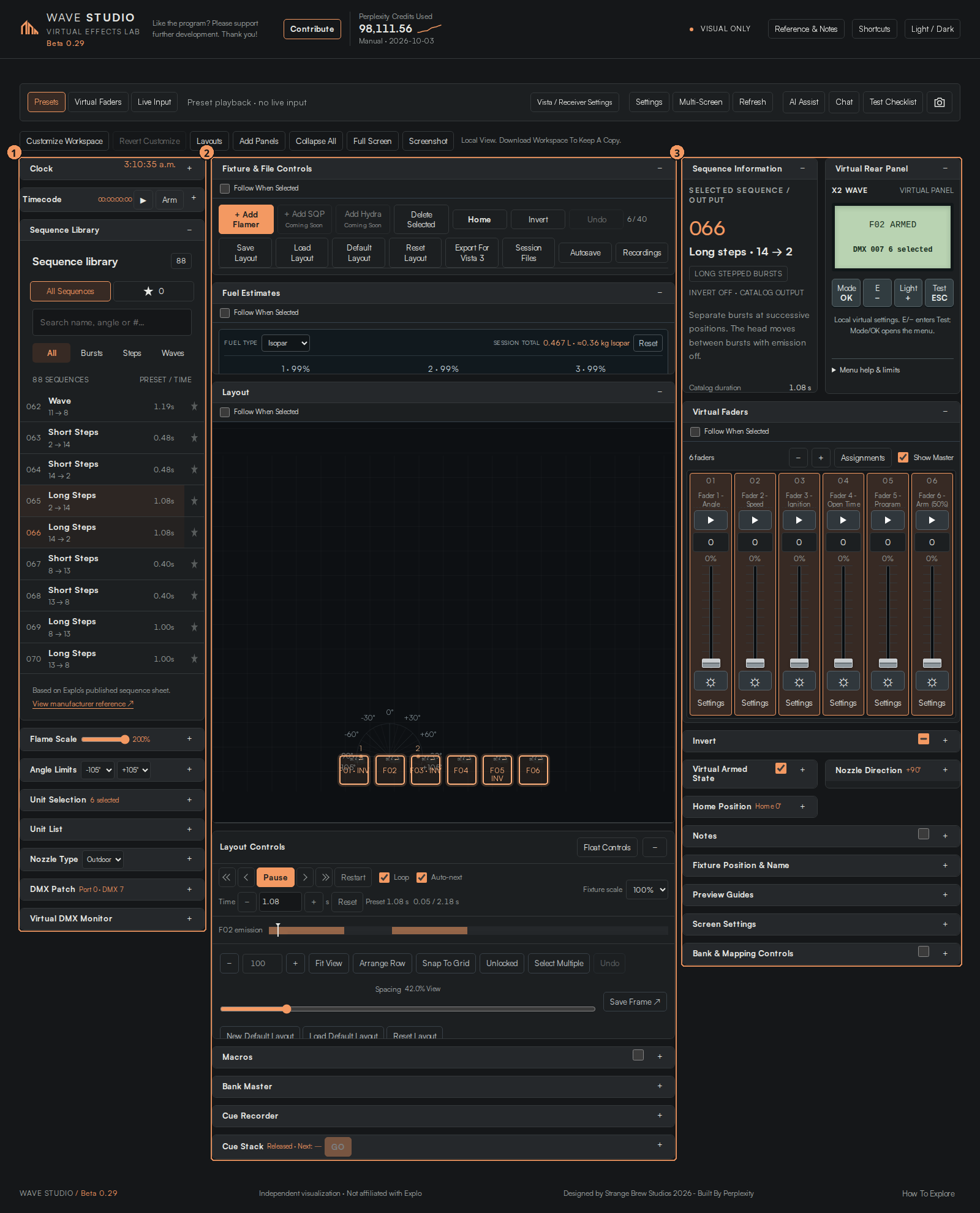
| # | Callout | Contents (shipped default) |
|---|---|---|
| 1 | Left column | Clock, Timecode, Sequence Library, Flame Scale, Angle Limits, Unit Selection, Unit List, Nozzle Type, DMX Patch, Virtual DMX Monitor. |
| 2 | Main column | Fixture & File Controls, Fuel Estimates, Layout (the stage) with Layout Controls, Macros, Bank Master, Cue Recorder, Cue Stack, MA (grandMA command section, Part 5.7). |
| 3 | Right column | Sequence Information, Virtual Rear Panel, Virtual Faders, Invert, Virtual Armed State, Nozzle Direction, Home Position, Notes, Fixture Position & Name, Preview Guides, Screen Settings, Bank & Mapping Controls. |
| Script | On screen |
|---|---|
| "Band four is the workspace, in three columns. A useful way to remember them: the left column 1 is what to play and which units — the Sequence Library, selection and the Unit List, plus patch. The main column 2 is the stage and the show — file controls, fuel, the stage, and the cue tools. The right column 3 is the selected unit — its information, its faders, its armed state, its nozzle direction and its position." | Scroll slowly top to bottom. |
| "Several panels ship minimized — Clock, Timecode, Macros, Bank Master, Cue Recorder, Cue Stack. A minimized panel is a one-line bar. Click it to open it; click the minus pinned top-right to put it away again." | Click the Cue Stack bar to open it, then its −. |
2.3 Fixture & File Controls
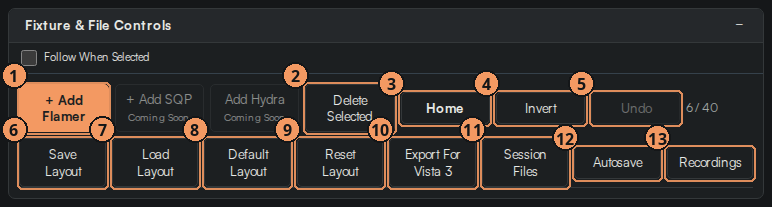
| # | Callout | What it does |
|---|---|---|
| 1 | + Add Flamer | Adds an X2 unit (up to 40). Add SQP and Add Hydra are marked Coming Soon. |
| 2 | Delete Selected | Removes the selected units (also Delete). |
| 3 | Home | Returns selected units to 0° (also H). |
| 4 | Invert | Flips the selected units upside-down. |
| 5 | Undo | Undoes the last stage edit. |
| 6 | Save Layout | Downloads a JSON file: units, favourites, cues, stacks and panel layout. |
| 7 | Load Layout | Loads a saved JSON. |
| 8 | Default Layout | Restores the shipped panel arrangement. |
| 9 | Reset Layout | Clears the stage back to the starting six units. |
| 10 | Export For Vista 3 | ZIP package and the Fixture Build Sheet (Part 5). |
| 11 | Session Files | Browser-side saved sessions. |
| 12 | Autosave | Toggle automatic saving. |
| 13 | Recordings | Clips recorded from the stage. |
| Script | On screen |
|---|---|
| "Fixture & File Controls is the toolbar for the rig. Left side: add a flamer 1, delete 2, home 3, invert 4, undo 5, and the count — six of forty. Right side is files: Save Layout 6 writes one JSON file with everything — your units, your favourites, your cues, your stacks and your panel arrangement. Load Layout 7 brings it back. Default Layout 8 restores the panels; Reset Layout 9 restores the stage." | Click + Add Flamer, then Undo. Click Save Layout, show the download. |
| "Session Files and Autosave keep you safe between visits, and Recordings is where your watermarked clips live." | Click Session Files, close. Click Recordings, close. |
2.4 The stage and Layout Controls
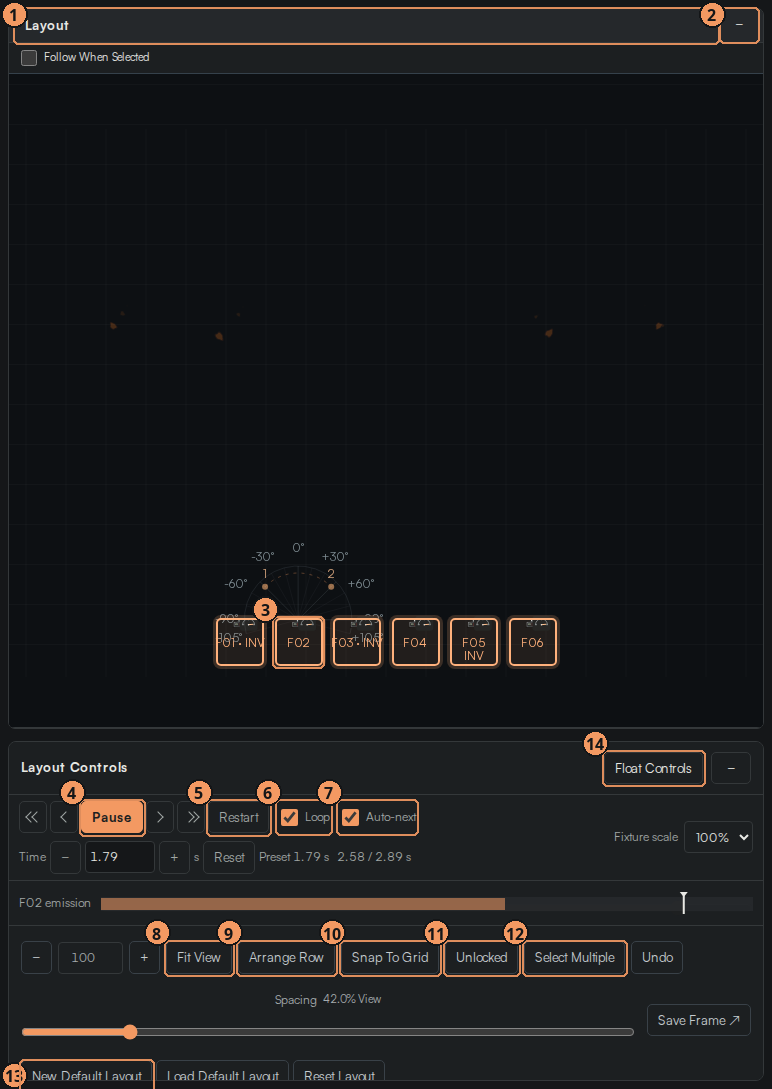
| # | Callout | What it does |
|---|---|---|
| 1 | Panel title | Drag to move (in Customize mode); click to rename. |
| 2 | Minimize / restore | Pinned top-right on every panel. |
| 3 | Fixture handle | Drag to move a unit; right-click for Home / Invert / Fuel / Apply / Remove. |
| 4 | Play / Pause | Also Space. |
| 5 | Restart | Back to the start of the sequence. |
| 6 | Loop | Repeat the current sequence. |
| 7 | Auto-next | Advance to the next sequence (or next favourite) when one ends. |
| 8 | Fit View | Frame all units. |
| 9 | Arrange Row | Space the units evenly in a line. |
| 10 | Snap To Grid | Snap positions while dragging. |
| 11 | Unlocked / Locked | Lock positions so a stray drag cannot move a unit. |
| 12 | Select Multiple | Sticky multi-select. |
| 13 | Chase | Multi-unit chase with BPM and Forward / Backward / Random order. |
| 14 | Float Controls | Pops Layout Controls out as its own window. |
| 15 | New Default Layout | Store the current stage as your own default. |
| Script | On screen |
|---|---|
| "The stage is a panel like any other — title 1, minimize 2 — with the front elevation inside. Every unit has a handle 3. Drag it. Right-click it for quick actions. The angle protractor you see on the selected unit is the X2's real travel: minus one-oh-five to plus one-oh-five degrees." | Select F02; drag it; right-click → Home. |
| "Under the stage, Layout Controls. Transport first: play 4, restart 5, loop 6, auto-next 7, and the arrows — single arrows step, double arrows jump; hold either to scroll through the list, and the double arrows scroll fifty percent faster. The Time field steps the clock in tenths, and the emission bar shows where the selected unit is inside the sequence." | Press Space, hold the ▶ arrow for a second, click Restart. |
| "Then the layout helpers: Fit View 8, Arrange Row 9, Snap To Grid 10, the lock 11, Select Multiple 12, and a spacing slider. Chase 13 runs the selected look unit by unit at a BPM. Save Frame exports a still." | Click Arrange Row, drag the spacing slider, click Fit View. Click Chase, set 120 BPM, Forward; stop it. |
| "Float Controls 14 detaches this strip — useful on a second screen — and New Default Layout 15 makes today's stage the one you return to." | Click Float Controls, then dock it back. |
2.5 Anatomy of a panel, and Customize Workspace
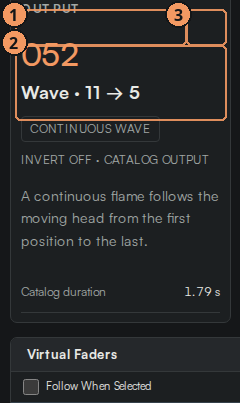
| # | Callout | What it does |
|---|---|---|
| 1 | Title | In Customize mode: drag to move between columns. Any time: click to rename. |
| 2 | Move / Float / Copy / Size / Remove | Up, Down, Dock Left, Dock Right, Float as a window, Duplicate, Panel Size, Remove. |
| 3 | Minimize | Pinned top-right in every state. |
| Script | On screen |
|---|---|
| "Every panel shares one anatomy. Title 1 — click it and type to rename. Under it, most panels have Follow When Selected: tick it and the panel jumps to whichever unit you click on stage. The minus 3 is always top-right." | Click the Nozzle Direction title, rename it "Tilt", press Enter. Tick its Follow When Selected; click F01 then F06 on stage. |
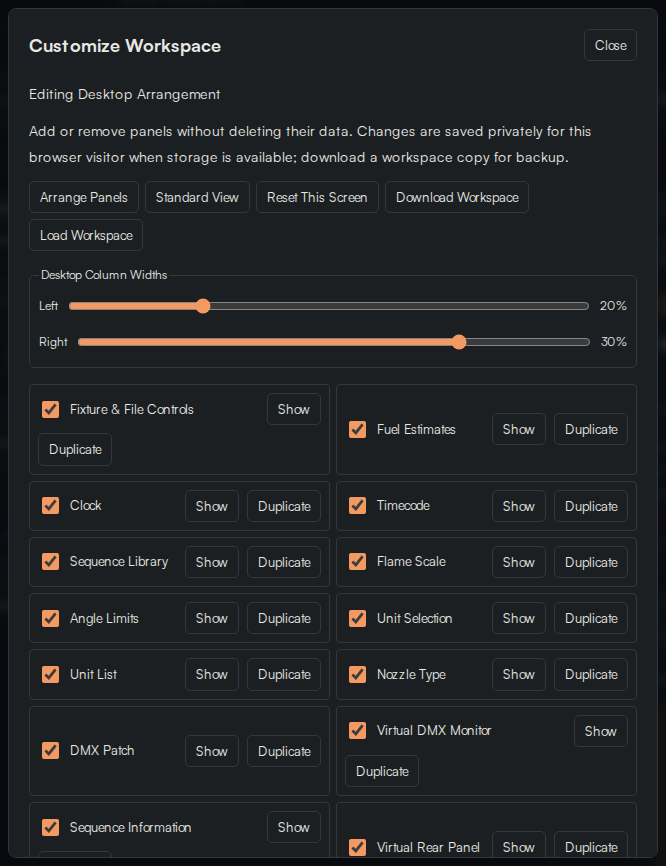
| "Click Customize Workspace — or just hold Control and Shift — and each panel grows a row of tools 2: move up, move down, dock left, dock right, Float to make it a window you can drag onto another monitor, Copy to have the same panel twice, Size, and Remove. Drag a title to carry a panel to another column. Revert Customize undoes the whole session." | Click Customize Workspace. Drag Sequence Information from the right column to the left. Float Virtual Faders, move it, dock it back. Click Revert Customize. |
| "Removed a panel by accident? Add Panels — Control Shift P — is the catalog; every panel is one click to bring back, including a second copy of the stage." | Press Ctrl + Shift + P, add Clock, close. |
| "Collapse All clears the deck. Full Screen hides the browser. Screenshot saves a PNG of the stage. Save your arrangement with Save Layout, or store it under Layouts for quick switching." | Click Collapse All, then Default Layout. Press Ctrl + Shift + F, then Esc. |
Recap
- Four bands: header, mode bar, workspace bar, workspace.
- Three columns: left = what to play and which units; main = stage and show; right = the selected unit.
- Every panel: title (click to rename), Follow When Selected, − top-right; Customize mode adds move / float / copy / size / remove.
- Save Layout keeps everything; Default Layout restores panels; Reset Layout restores the stage.
Two-minute practice
- Float the stage, move it, dock it back.
- Make a copy of Virtual Faders and put one copy in each side column; then Revert Customize.
- Rename three panels, save the layout, click Default Layout, then Load Layout to prove the names come back.